What whole-page conversion gives you
A page converter draws the visible PDF page into a grid of pixels. Text, lines, photographs, captions and margins become one image. You can share that image in a message or place it in a document preview, but its text is no longer editable and its links no longer work.
The name “PDF to JPG” often describes this job. PNG can be used for the same job: changing the image format does not turn page conversion into photo extraction.
We tested the first page of an original two-page EasyPic PDF. It combines text with a programmatically drawn illustration, not a photograph. EasyPic's 144 DPI PNG measured 1224 × 1584 pixels. It included the title, paragraphs, illustration, caption and page margins.
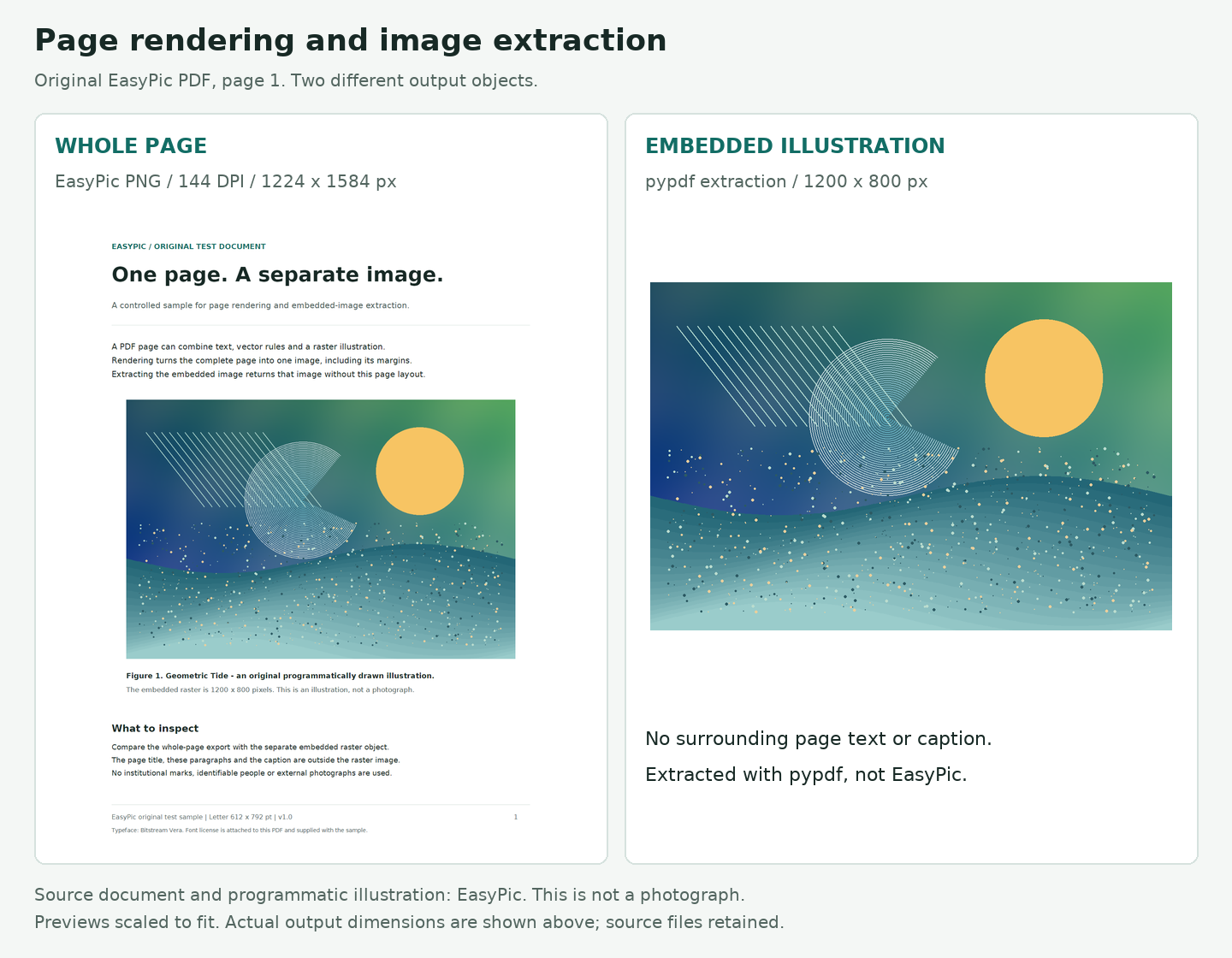
Left: the complete page. Right: a separate embedded illustration, extracted with pypdf rather than EasyPic. The previews are scaled to fit the comparison; their labels give the actual output dimensions. Source document, illustration and comparison layout: EasyPic. Open the full comparison.
What extracting an image gives you
The illustration inside that page had a different shape and size: 1200 × 800 pixels in our pypdf extraction. It did not contain the surrounding paragraphs or the caption. That is useful when you need an image for another layout and have permission to reuse it.
“Original image” needs care here. The PDF may already contain a reduced or compressed version of the author's source image. An extractor can also change the encoding. In this controlled sample, the extracted PNG matched our known source PNG, including its pixels and file bytes. That result does not mean an arbitrary PDF will contain an unchanged source file, or promise recovery of a camera original.
For this task, use a tool that explicitly extracts embedded image objects. Adobe's export documentation distinguishes image extraction from page export. EasyPic's page converter has no image-extraction mode.
A PDF page may have no embedded image
Visible PDF content is not always stored as a bitmap. Text and vector drawing instructions can form a page without an embedded photograph.
In an earlier check on 11 November 2026, we examined the single-page W3C PDF test resource. pypdf found zero embedded images, while EasyPic rendered a 1190 × 1684 PNG at 144 DPI with the page's text visible. An empty image-extraction result does not necessarily mean the page is blank.
Choose JPG or PNG for the page you need
Once you want the complete page, choose a format the receiving application accepts. JPG uses lossy compression and is often practical for pages dominated by photographs. PNG preserves the pixels produced by rendering and is worth trying for small text, diagrams and fine lines.
For page 2 of our original EasyPic PDF at 144 DPI, both formats measured 1224 × 1584 pixels:
- The JPG was 246,901 bytes.
- The PNG was 372,500 bytes.
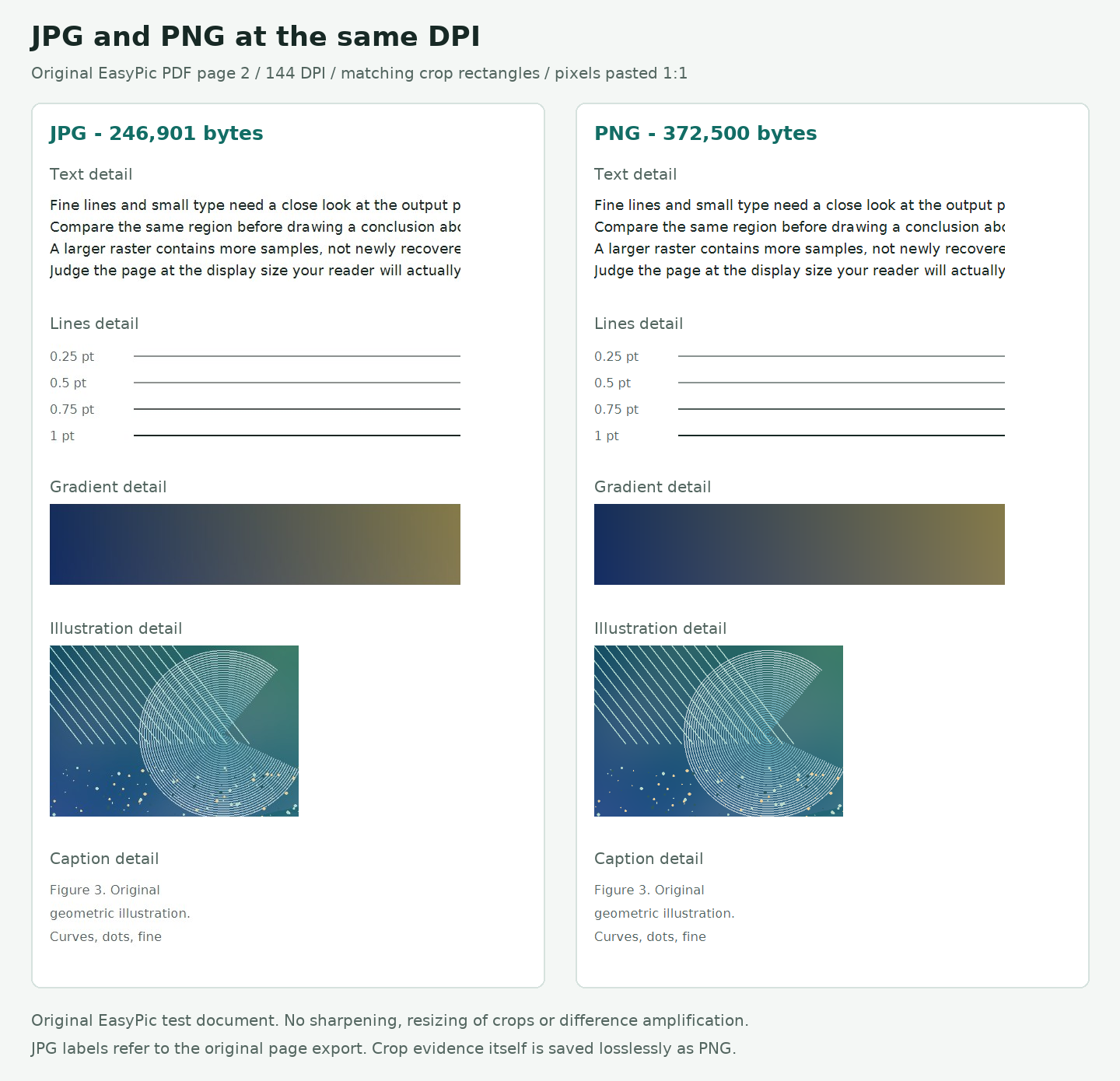
The crops use identical coordinates and are pasted without resizing. The article preview may scale the complete comparison down. Open the original PNG, then click the image in Chrome's viewer to switch from fit-to-window to 100%. Source document, programmatic illustration and comparison: EasyPic.
Closer text excerpts from the same 144 DPI exports appear separately below. Both are 206 × 116 pixels, shown at their own size. These are cropped fragments of the page text, not a reformatted paragraph.
The JPG-labelled excerpt is displayed as a PNG file to avoid another round of JPG compression. It still shows the pixels decoded from the JPG export.
JPG at 144 DPI — 206 × 116 pixels
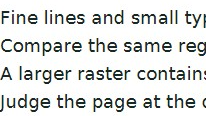
PNG at 144 DPI — 206 × 116 pixels
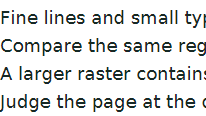
In this sample, the JPG was smaller and showed faint compression marks around some letter edges; the PNG kept cleaner white areas there. The illustration crops looked similar at this view. These are observations from one programmatically constructed page, not a universal quality ranking or a typical file-size saving.
Try one representative page before converting a batch. Check a caption, fine lines and a photo at the size people will actually see. PNG's lossless encoding does not preserve editable PDF text or vectors, and this EasyPic workflow does not offer a transparent-background export setting.
What changes between 144 and 216 DPI
Resolution controls how many pixels are used to draw a PDF page. Our original EasyPic sample has Letter-size pages, 612 × 792 PDF points. Its PNG exports measured:
- 144 DPI: 1224 × 1584 pixels.
- 216 DPI: 1836 × 2376 pixels.
The higher setting produces 1.5 times as many pixels across each edge, or 2.25 times as many pixels in total. That is a pixel-count calculation, not a claim that the picture becomes 2.25 times clearer.
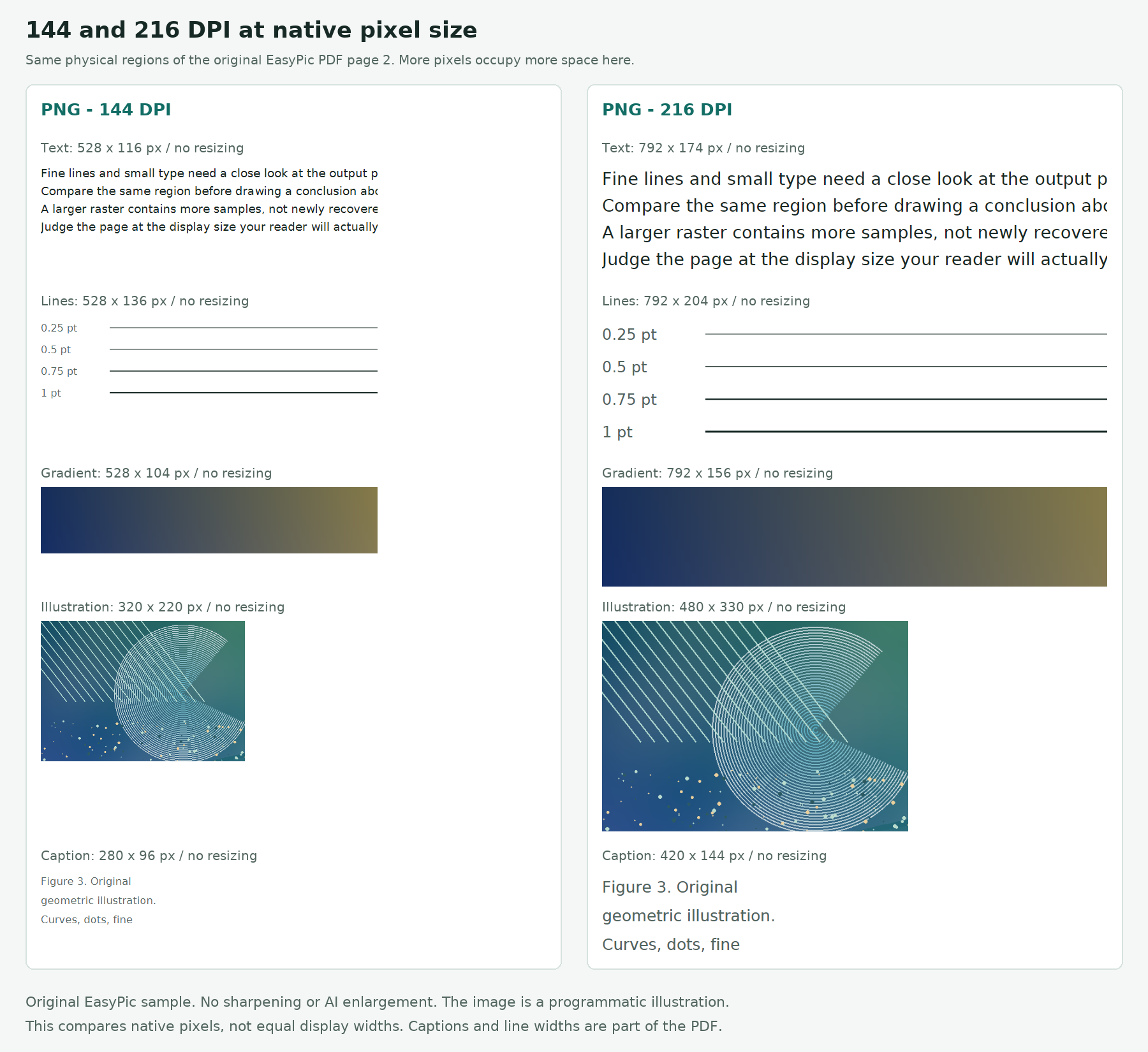
These are the same physical regions of the page. At native pixel size, the 216 DPI crops occupy more space because they contain more pixels. This view is useful for inspecting edges, but it is not an equal-display-size comparison. The inline image is scaled down; open the native-pixel comparison and switch the viewer to 100% for source-pixel inspection.
The smaller excerpts below cover the same part of the page and fit a narrow screen without resizing. Each keeps its own pixel dimensions, so the 216 DPI excerpt occupies more space. This is a native-pixel view, not a comparison at equal display size.
PNG at 144 DPI — 206 × 116 pixels
Open the 144 DPI text excerpt.
PNG at 216 DPI — 309 × 174 pixels
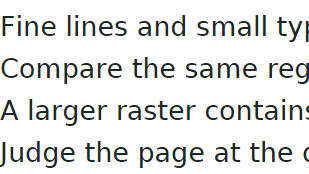
Open the 216 DPI text excerpt.
We also displayed both complete PNGs at exactly 612 CSS pixels wide in Chrome. The layout and letter sizes stayed the same. At 360 pixels wide, the small body text and captions remained small in both versions.
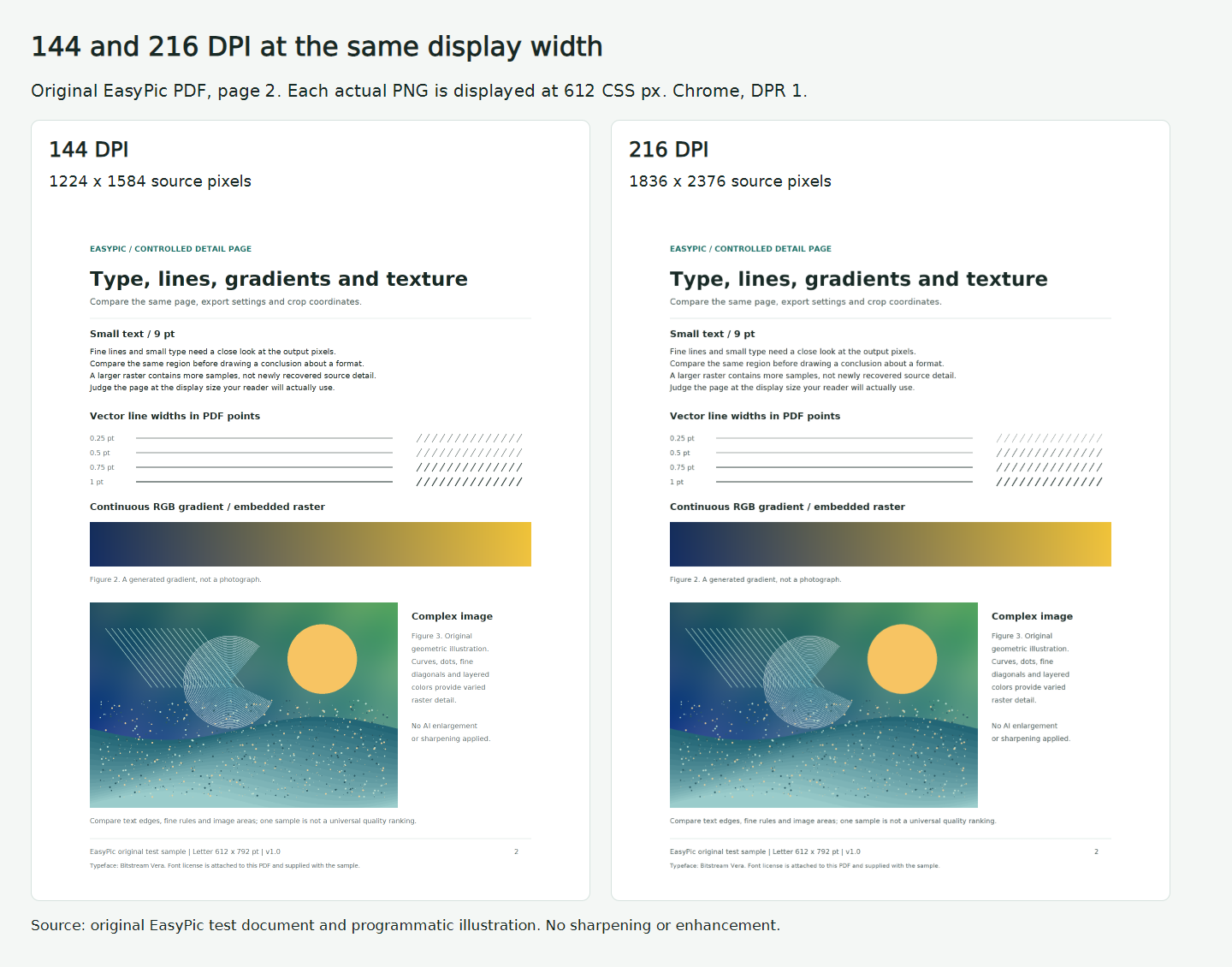
The higher resolution does not enlarge the lettering when both pages occupy the same display width. In the original experiment capture, each page was 612 CSS pixels wide; the article scales this preview to its container. This browser capture used a device scale factor of 1; it is one display condition, not a test of every screen. Source document and programmatic illustration: EasyPic. Open the original display comparison.
Choose 216 DPI when you need more pixels for a larger display or a closer crop, then check whether the result helps. It cannot reconstruct detail missing from an embedded photo or scan. A small preview can still make a dense page hard to read.
The resolution menu controls rendering dimensions. In our Chrome downloads, we did not find a matching 144 or 216 DPI file-density tag. For printing, check both the pixel dimensions and the intended print size rather than relying on that label alone.
Export only the pages you need in EasyPic
If you need a picture of a complete page, open EasyPic PDF to Images. For our two-page sample, selecting page 2 was enough to share its complete layout without exporting page 1.
- Click Choose PDF and select one unencrypted PDF.
- Select the page thumbnails you need, or enter page numbers and click Apply pages. Use the PDF's actual page positions, which may differ from page numbers printed on the document.
- Choose JPG or PNG, then Standard — 144 DPI or High — 216 DPI.
- Click Convert to Images. Download one result with Download Image, or use Download All (ZIP) for multiple pages.
- Open the downloaded image or ZIP and check the page numbers, text and dimensions before sharing it.
Page selection is not page rearrangement. We entered 2,1,2 and applied it. The tool selected pages 1,2; the actual ZIP contained one JPG for page 001 and one for page 002, in that order. Repeating a page number did not create a duplicate image.
Check the current limits before starting
At our check on 12 November 2026, the production tool accepted one unencrypted PDF up to 20 MB and 100 pages, with 1–10 selected pages per batch. Each output page was limited to 4096 pixels per side and 12.5 megapixels. The encoded images together were limited to 30 MB, and the ZIP to 32 MB.
The tool renders pages in your browser and does not require an account. It rejects encrypted PDFs, including empty-password files and permission-restricted files. It does not provide embedded-image extraction, OCR, AI enlargement or PDF text editing. These are published limits checked against the current interface, not results of testing every boundary file.
Sample files, method and image credits
The comparisons use an original two-page EasyPic test PDF, version 1.0, with Letter-size pages. We retained its source code, original raster assets, PDF, file hashes and actual EasyPic downloads. Tests and display checks used desktop Chrome 157.0.8103.39 on Windows on 12 November 2026; pypdf 6.10.0 performed the separate image inventory and extraction. The linked W3C example comes from the earlier check described above; it was not rerun for this experiment.
The JPG/PNG detail crops use identical coordinates. The 216 DPI crop coordinates are 1.5 times the 144 DPI coordinates, so they cover the same page regions. Native-pixel crops were not resized, sharpened or enlarged with AI. Full-page previews were scaled to fit; the equal-width view was captured from the browser. These examples do not measure reading performance or establish a result for every PDF.
EasyPic created the document, geometric illustration, gradient and comparison layouts with programmatic drawing tools. The illustration is not a photograph, and no external photos, people or institutional marks were used. The sample uses Bitstream Vera fonts under their supplied license, retained with the sample and attached to the PDF. The W3C file is linked for reproducibility; its PDF metadata names Evangelos Vlachogiannis, and its page artwork is not reproduced in this article.