
What should I know before creating the PDF?
Each image is centered on a separate portrait A4 page, approximately 595 × 842 points, with padding. It is scaled to fit while keeping its aspect ratio. The output does not provide a borderless photo-book layout or editable text. Wide source images will have more surrounding whitespace on a portrait page.
Large source images are reduced when their longest edge exceeds 3840 pixels during preparation. The current interface also warns that images above 1.5 MB may fail to generate properly. Smaller files can still fail; decoding and browser memory matter.
Start with a small batch of reasonably sized files. If the final page count is lower than expected, or an image is missing, retry the affected images or a smaller batch. The conversion is local, free, and does not require an account.
How do I put the images in the right order?
1. Add your images
Open Images to PDF, click Choose Images, and select JPG, PNG, or WebP files. The tool requires 2 to 20 images to create a document. Use Add Images for another page or remove an unwanted image before starting.
Look at the thumbnail grid. The large number in the middle of each thumbnail indicates its current page position. The number is not printed over the image in the PDF.
The original file name also helps identify a selected page. When names are similar, check the thumbnails instead of relying on alphabetical order.
2. Arrange the pages
Click a thumbnail to select it. The shared toolbar has Move earlier, Move later, and Remove controls. For the example, we selected page 3, product-c.png, then used Move earlier twice.
You can also drag an image or its handle to another position. The shared buttons are a useful alternative when precise dragging is awkward or you prefer keyboard operation. Select the page, then focus and activate the toolbar control you need.
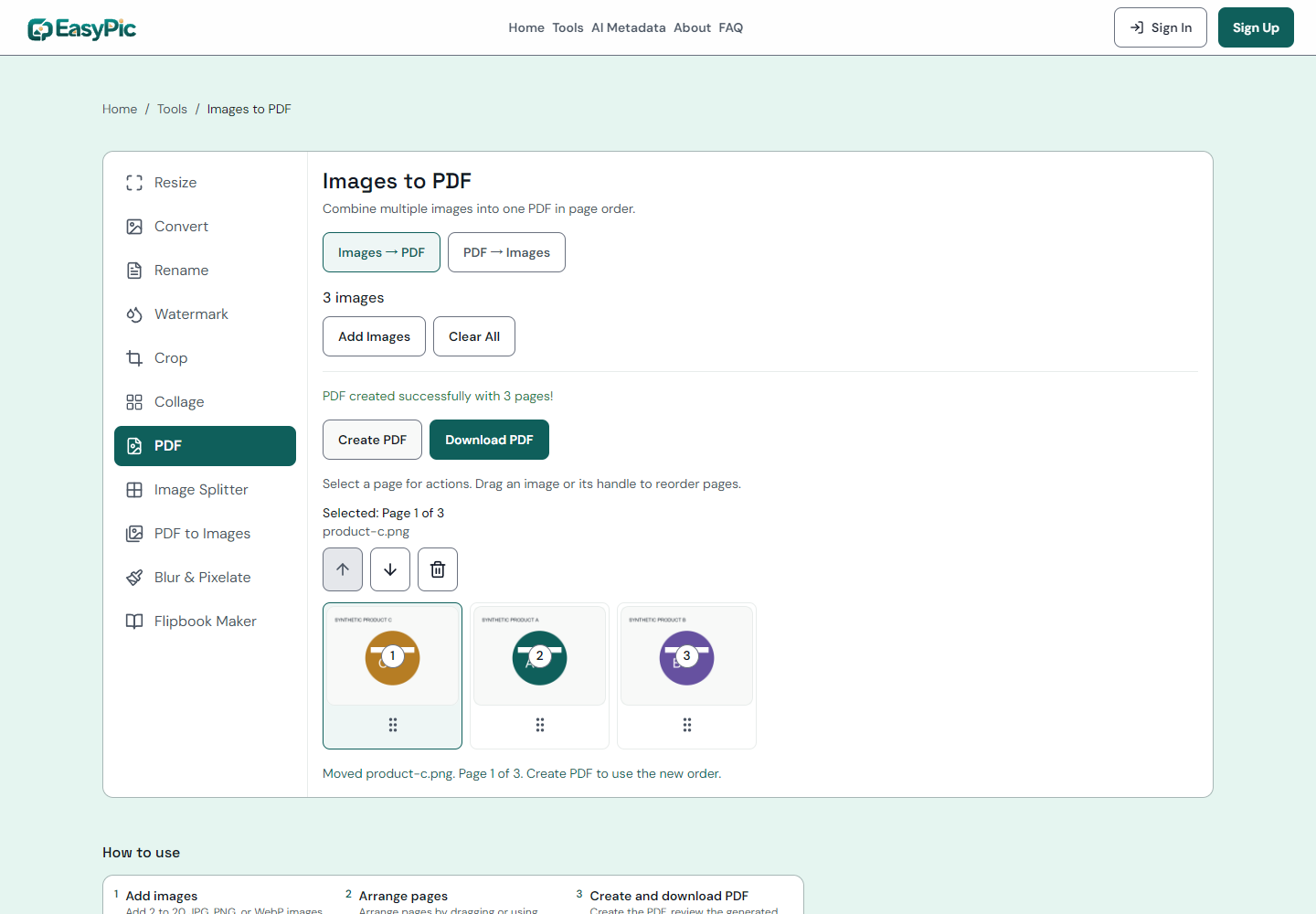
Check all page numbers again after moving an image. The first thumbnail should be the first PDF page. Simply selecting a thumbnail does not reorder the document.
3. Create, download, and reopen the PDF
Click Create PDF and wait for the success message. Check that its page count matches the number of intended pages. Click Download PDF and open the file in a PDF reader.
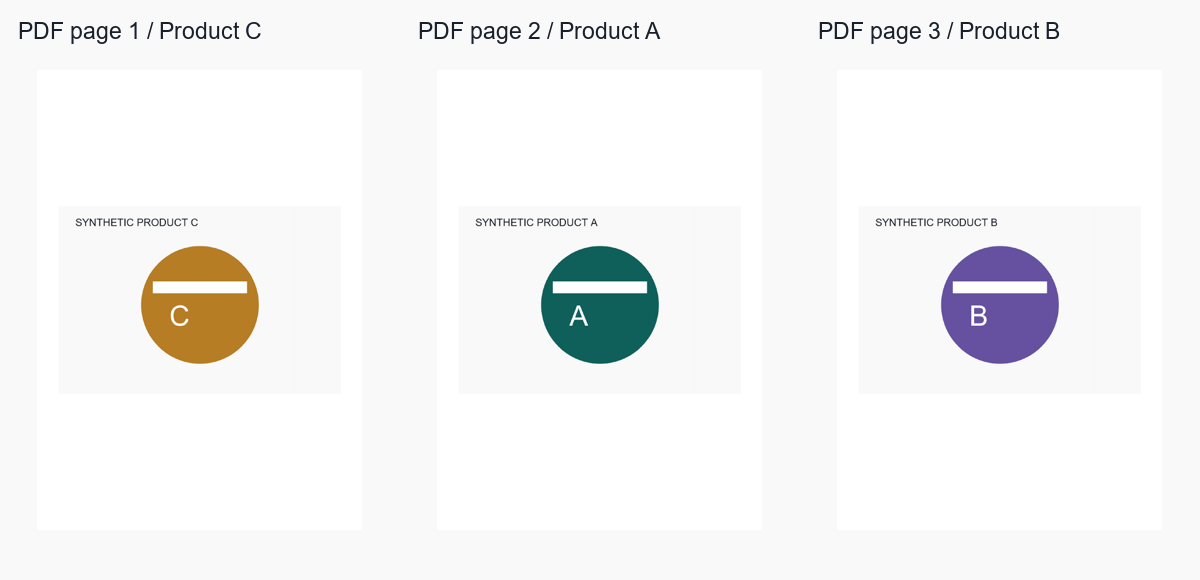
Inspect the cover or first page, a middle page, and the last page. For the three-page example we checked all pages, including the letters and colors that identify C, A, and B. If you change the page order after creating a result, create the PDF again; the old result is no longer the right document for that sequence.
Keep the original images until you have checked the downloaded PDF.
What did the downloaded PDF show?
Our inputs were three synthetic product illustrations: product-a.png, product-b.png, and product-c.png, each measuring 1200 × 800 pixels. They were initially added in A, B, C order. We moved C to the front, created the PDF, and downloaded the actual document.
The result contained three portrait A4 pages. Independent file checks confirmed that the embedded image pixels followed C, A, B, matching the edited sequence.
FAQ
Can I make a PDF from one image?
This version requires at least two images. It accepts up to twenty for a document. Do not add unrelated duplicate pages merely to bypass the minimum if the result would be misleading.
Do I need to resize the images first?
Not always: the PDF generator fits each image to a page. For unnecessarily large sources, resize a consistent batch first and inspect the detail you need to retain.
Which image formats can I use?
JPG, PNG, and WebP are accepted by the upload control. If you are preparing a PNG batch for another destination as well, the conversion guide explains JPEG and WebP exports.
Does moving a page crop or edit its picture?
No. Reordering changes the sequence. Use the separate image tools for visual edits before combining the images, then reopen the final downloaded PDF to confirm both content and order.