
What should I check before converting PNG files?
This version accepts PNG input and exports JPG (JPEG) or WebP. Choose JPEG when the destination requires it. If the destination accepts WebP, compare its size and quality with a JPEG sample. Neither format guarantees a smaller file; image content and the browser encoder affect the result.
JPEG removes transparency. In the current converter, transparent areas are filled white before JPEG encoding. WebP supports transparency. If an edge needs to blend into a colored web background, check the exported alpha rather than judging it only on a white preview.
The converter does not display a fixed input-size or batch-count guarantee. Your browser needs enough memory to decode and encode the images, so test a few files first and use smaller batches on a device with limited resources. Conversion runs locally, without sign-in or AI credits.
How do I convert a batch of PNG images?
1. Select real PNG files
Open the Bulk Image Converter. Click Choose Images and select the PNG files you want to convert. Wait for the batch to appear in the list. Use Add Images, Remove, or Clear All to correct the selection before processing.
Renaming a JPEG with a PNG extension does not convert it. Choose a real, decodable PNG. The upload validation checks the accepted file type and whether the browser can decode the image. Empty, duplicate, or unreadable entries can be rejected; check any visible message to see which files were added.
2. Choose the format and quality
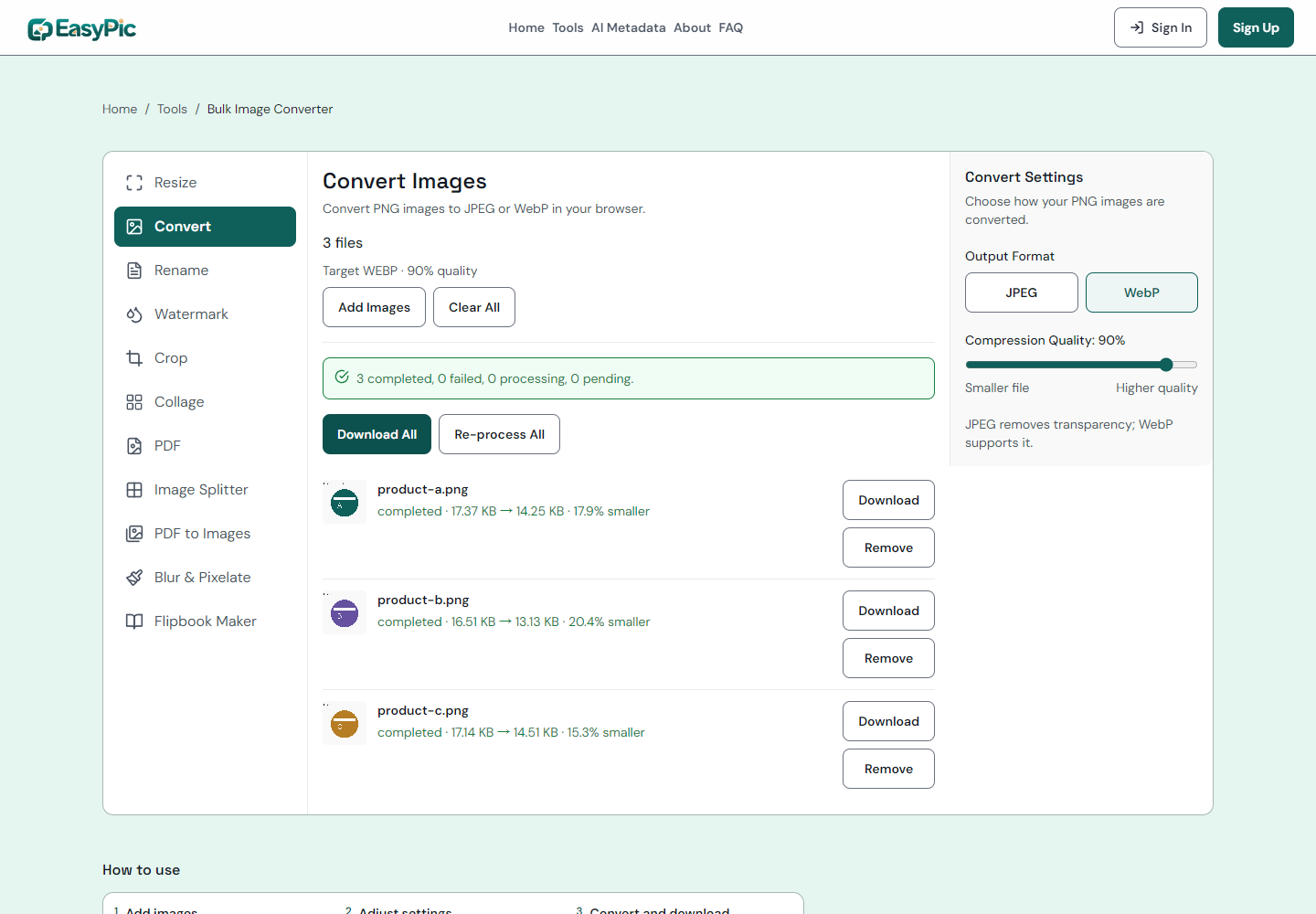
In Convert Settings, choose JPEG or WebP under Output Format. Adjust Compression Quality if needed. We used the displayed 90% setting in the test. Start there, then compare a sample if your destination has a strict file-size requirement.
3. Convert and save the files
Click Convert and wait for the results. An entry can show its original and output size. Download All saves the completed batch as a ZIP; Download on an entry saves that individual image.
To compare formats, select the other format and run the batch again using the processing button shown by the interface. Changing a setting alone does not create a new file. Download the new result under a separate name so you can compare it with the first export.
Unzip the download and open representative outputs in an image viewer or the destination application. Confirm the file extension, dimensions, fine text, edges, and transparency where relevant. Do not assume that a file is valid just because its extension says WebP.
What did the JPEG and WebP downloads show?
We used three synthetic 1200 × 800 PNG product illustrations. We converted the same batch once to JPEG and once to WebP. Each downloaded ZIP contained three decodable files, and every output kept the original 1200 × 800 dimensions.
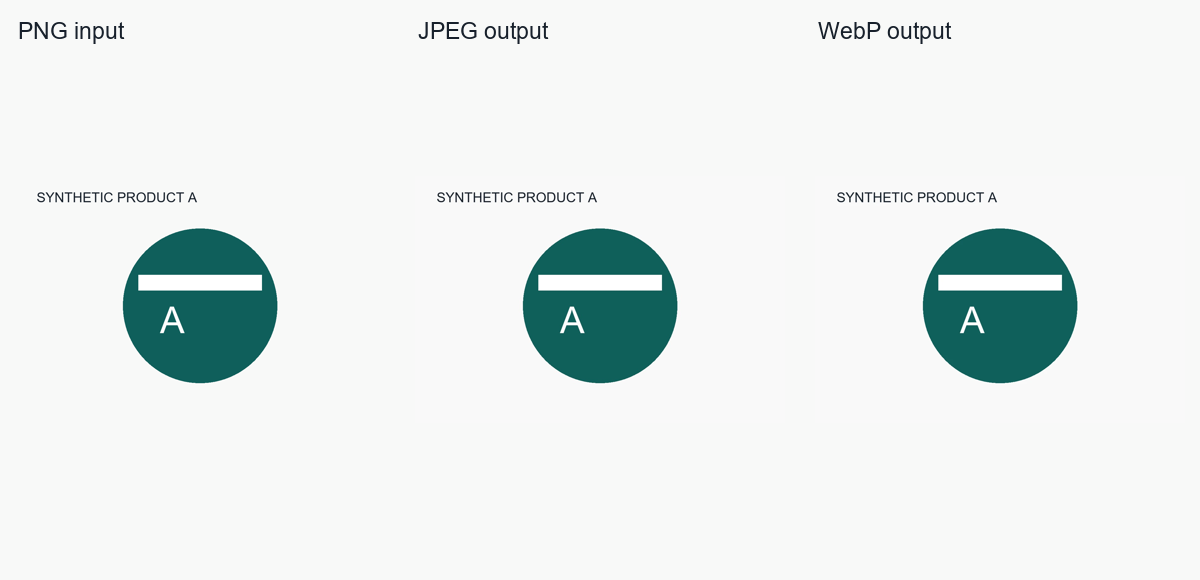
These figures use actual downloads from the tool. The inputs are simple graphics, so they do not establish a typical compression percentage. Photos, transparent icons, and detailed screenshots can produce different results.
Will conversion change the image dimensions?
The converter keeps the source pixel dimensions. It does not resize images, convert vectors, or promise to preserve metadata. If the dimensions also need changing, use the resizing guide and choose the appropriate output there.
FAQ
Can I convert JPEG to PNG here?
No. This version supports PNG to JPG (JPEG) or WebP.
Does 90% quality mean a 10% smaller file?
No. Quality is an encoder setting, not a file-size target or a guaranteed saving. A converted file may be larger than the source. Inspect the actual result and choose a setting that fits your use.
Will WebP work everywhere?
That depends on the application or publishing channel receiving the file. Check its accepted formats before converting the whole batch. Keep a JPEG version when a destination specifically requests JPEG.
Can I put the converted images into one PDF?
Yes. Images to PDF accepts JPG, PNG, and WebP. Follow the PDF page-order guide to arrange the images, create the document, and check the downloaded page order.